


Getting Started
WP Rollback is a WordPress plugin that lets you safely roll back any WordPress plugin or theme to a previous version with just a few clicks.
What is WP Rollback?
WP Rollback provides a simple, reliable way to revert WordPress plugins and themes to previous versions when updates cause issues on your site. Instead of manually downloading and replacing files, WP Rollback automates the entire process with built-in safety checks.
Why Use WP Rollback?
- Safety First: Version preservation and safety checks prevent conflicts
- Time Saving: No need to manually download and replace files
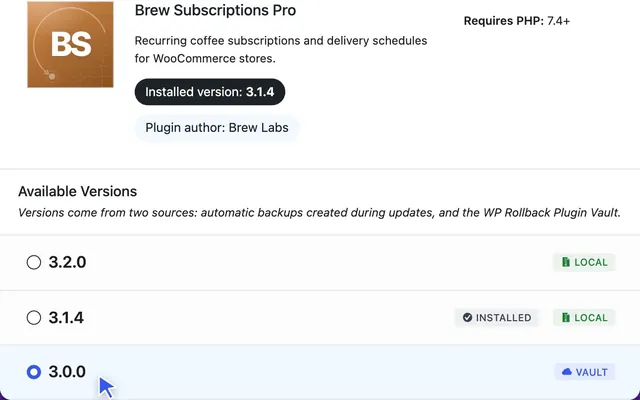
- Version Management: Easy access to all available versions
- Rollback Confidence: Test updates knowing you can easily revert
Installation
Free Version
- Download WP Rollback from the WordPress.org repository
- Upload the plugin to your
/wp-content/plugins/directory - Activate the plugin through the 'Plugins' menu in WordPress
- Navigate to Tools > WP Rollback to get started
Pro Version
The Pro version adds:
- Premium plugin and theme rollbacks, from Plugin Vault and your local backups
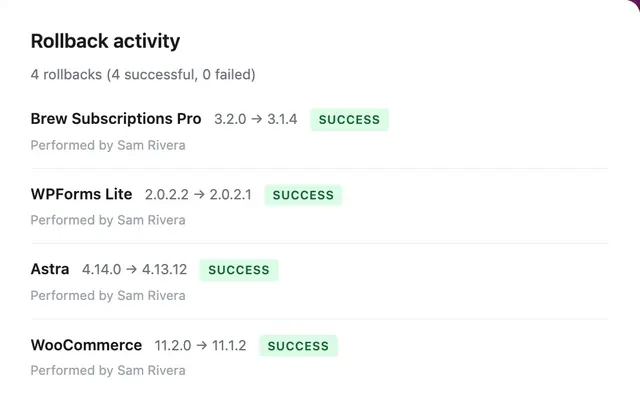
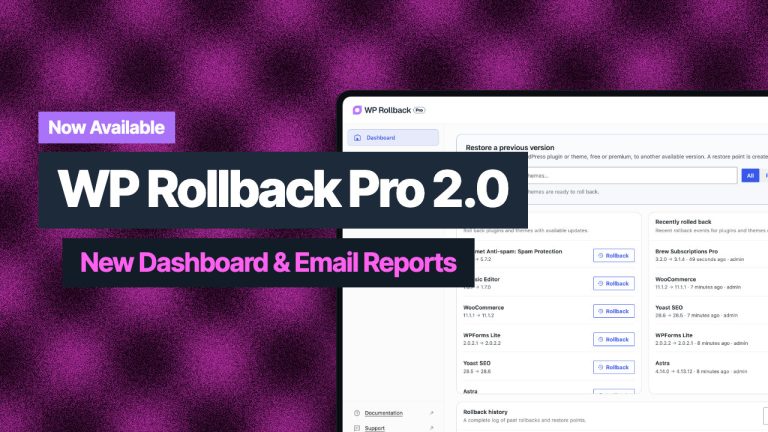
- A Dashboard with a version search and your rollback history
- An Archives screen to download, restore, or delete local backups
- Email status reports
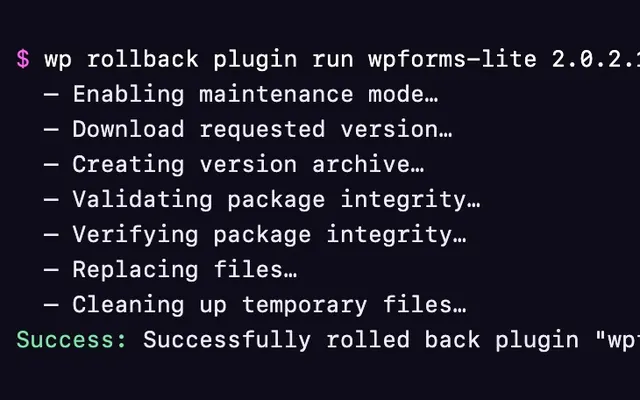
- WP-CLI commands
- Package validation before each rollback
- Rollback notes
- Priority support
What You'll Receive After Purchasing Pro
When you purchase WP Rollback Pro, you'll receive two welcome emails:
WP Rollback Pro Welcome Email containing:
- Your license key
- Direct download link for the Pro plugin ZIP file
- Getting started guide
- Subscription details
PaidCommunities Account Email providing:
- Customer dashboard access at customer.paidcommunities.com
- Account management capabilities
- Instructions for accessing your portal
Save Your Emails
Save both emails for easy reference. Your license key and download link are in the WP Rollback Pro email, while your ongoing account management happens through the PaidCommunities dashboard.
Step 1: Download the Pro Plugin ZIP File
Open your WP Rollback Pro Welcome Email and click the download link. This will save a .zip file (e.g., wp-rollback-pro.zip) to your computer. Do not unzip this file — WordPress needs the .zip file as-is.
If you can't find the email, you can also download the latest version from your Customer Dashboard under the "Downloads" section.
Step 2: Upload and Activate the Pro Plugin
- In your WordPress admin, go to Plugins → Add New Plugin
- Click the Upload Plugin button at the top of the page
- Click Choose File (or Browse) and select the
wp-rollback-pro.zipfile you downloaded in Step 1 - Click Install Now and wait for WordPress to finish uploading and extracting the plugin
- Once the installation completes, click Activate Plugin
Already Using WP Rollback (Free)?
You don't need to remove the free version first. When you activate Pro, it switches the free version off for you (network-wide if it was network-activated) and shows a one-time notice. Your rollback history and backups carry over to Pro.

Common Mistakes
- "The link you followed has expired" — Your hosting may have a small upload limit. Ask your host to increase
upload_max_filesizeandpost_max_sizeto at least 64MB. - "The package could not be installed" — Make sure you're uploading the
.zipfile directly, not a.zipthat you unzipped and re-zipped yourself. - Uploading via FTP instead — If you prefer, you can unzip the file and upload the extracted
wp-rollback-profolder to/wp-content/plugins/via FTP or your hosting file manager, then activate it from the Plugins page. - Updating Pro by hand — If WP Rollback Pro is already installed, WordPress asks what to do with the upload. Choose Replace current with uploaded. Don't delete Pro to reinstall it. Deleting Pro removes its settings, including your license.
Step 3: Activate Your License
After activating WP Rollback Pro, enter your license key to unlock Pro features and enable automatic updates:
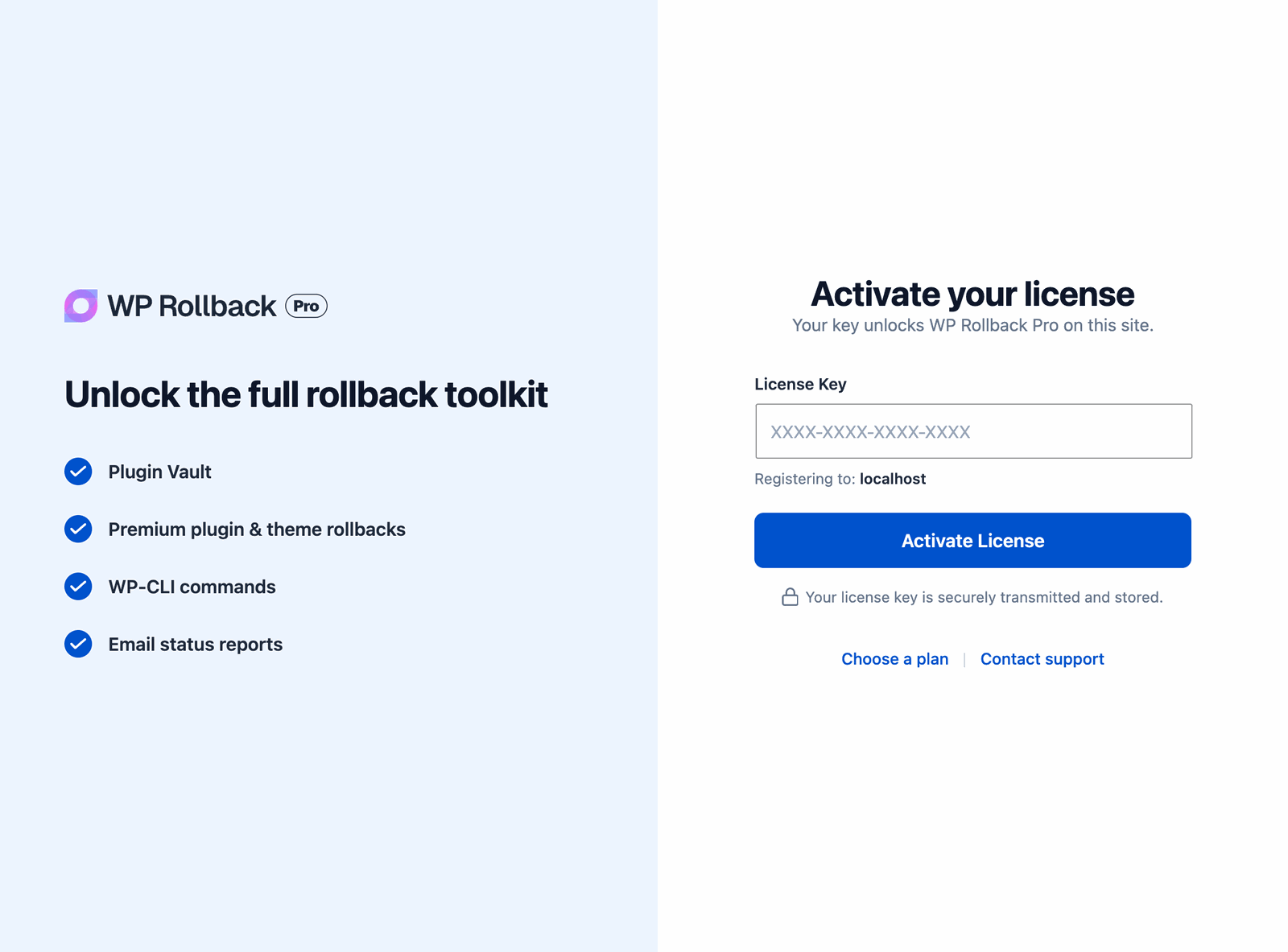
- Go to Tools → WP Rollback Pro (on a network-activated multisite: Network Admin → Settings → WP Rollback Pro). Until your license is active, this screen shows an Activate your license card. WordPress also shows a "License required" notice on other admin screens, with an Activate License link.
- Open your WP Rollback Pro Welcome Email and copy your license key (or find it in your Customer Dashboard)
- Paste the license key into the License Key field
- Click Activate License
- The Pro Dashboard loads as soon as the license is active
Can't Find Your License Key?
Your license key is available in two places:
- The WP Rollback Pro Welcome Email sent after purchase
- Your Customer Dashboard — log in with the email you used to purchase and you'll see the key on the main page
If you can't find either, use the "Forgot Password" link on the dashboard login page to regain access.
Step 4: Delete the Free Version (Optional)
Once Pro is active, you can delete WP Rollback (Free) from Plugins → Installed Plugins. Your rollback history and backups stay in place for Pro.
Only delete the free version after Pro is installed. If Pro isn't installed, deleting the free version also deletes your rollback history and the setting that points to your backup folder.
If you reactivate the free version later, Pro pauses and shows "WP Rollback Pro is paused while WP Rollback (Free) is active." Click Deactivate WP Rollback (Free) in that notice to turn Pro back on.
You're all set! For detailed information about managing your Pro subscription, see our Customer Dashboard guide.
Important for Premium Plugin and Theme Rollbacks: Both Free and Pro save a backup of a premium (non-WordPress.org) plugin or theme before it updates. WP Rollback must be installed before the update runs to capture the previous version. Free keeps the 5 most recent backups for each plugin or theme, and Pro keeps 25 by default. Only Pro can restore these backups. Free users can still reach them over SFTP in a private folder inside wp-content/uploads/ named wp-rollback- followed by 32 random characters.
Multisite Installation
For WordPress Multisite installations:
- Install WP Rollback as usual
- Network Activate the plugin from Network Admin → Plugins
- Access WP Rollback from Network Admin → Settings → WP Rollback (or WP Rollback Pro)
- Only Super Administrators can perform rollbacks
WARNING
On multisite, rollbacks affect ALL sites in the network. See our Multisite Guide for important details.
Quick Start
Once installed, you'll see Rollback links added to your plugins and themes:
- Plugin Rollbacks: Go to Plugins > Installed Plugins and click "Rollback" next to any plugin
- Theme Rollbacks: Go to Appearance > Themes and click "Rollback" on any theme
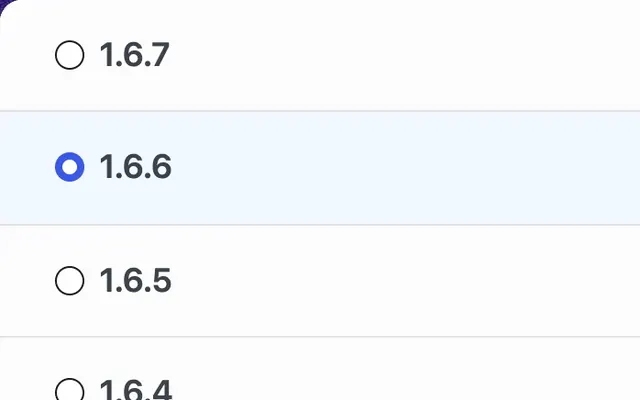
- Rollback Screen: Go to Tools > WP Rollback (Free) or Tools > WP Rollback Pro to find any plugin or theme and pick a version
System Requirements
- WordPress 6.5 or higher
- PHP 7.4 or higher
- Write permissions to wp-content directory
- Stable internet connection for downloading versions
What's Next?
- Learn How Rollbacks Work
- Explore Plugin Rollbacks
- Understand Theme Rollbacks
- Running Multisite? See our Multisite Guide
- Discover Pro Features and benefits
Need Help?
- Check our Troubleshooting Guide
- Review Frequently Asked Questions
- Pro users: Access support through your Customer Dashboard