


Dashboard
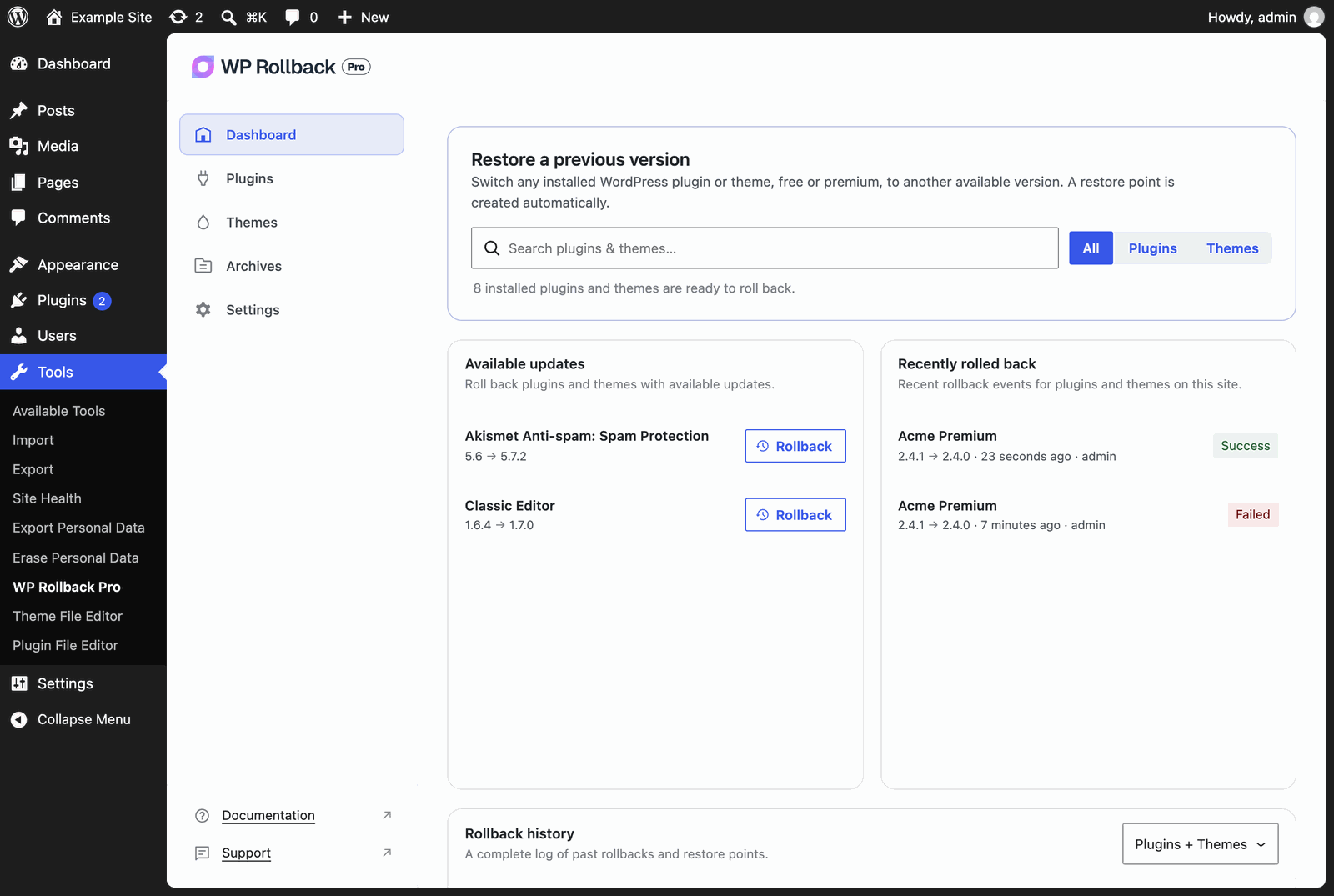
The Dashboard is the first screen in WP Rollback Pro. Search any plugin or theme to roll it back, see what was recently updated, and review your rollback history.
Where to find it
After you activate your WP Rollback Pro license, the Dashboard is the landing page at:
Tools → WP Rollback ProYou can also reach it from the Dashboard item in the WP Rollback Pro menu. On a network-activated multisite install, see Multisite.
WP Rollback Pro hides other plugins' admin notices on its own screens, so the Dashboard isn't buried under unrelated banners.
What's on the page
Restore a previous version
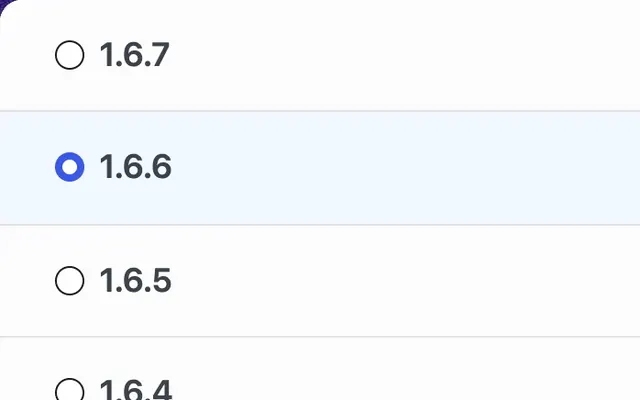
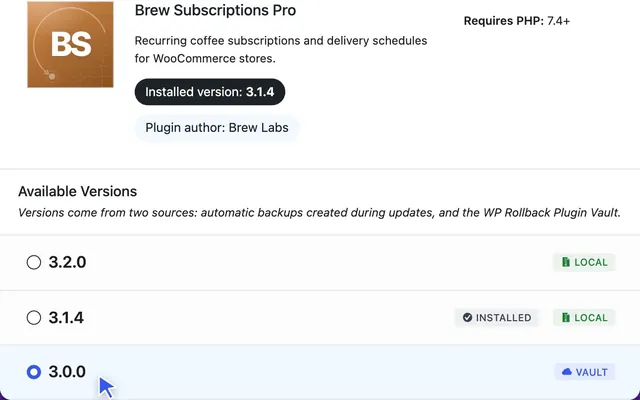
The search box at the top finds any installed plugin or theme by name or slug. Use All, Plugins, or Themes to narrow the results. Up to 6 matches appear. Click one (Choose version) to open its rollback screen, where you pick the version to switch to.
Available updates
Installed plugins and themes that have an update available, with the installed version and the new version. The list comes from WordPress's own update check. Click Rollback to open that item's rollback screen.
Recently rolled back
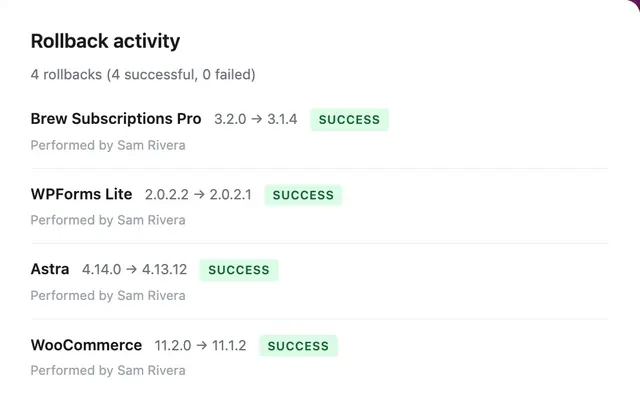
Your last 5 rollbacks, newest first. Each row shows the version change, when it happened, who ran it, and whether it succeeded or failed. Click a row to open that item's rollback screen.
Rollback history
A paginated table of every rollback and restore point recorded on the site. It has these columns:
- Asset — the plugin or theme name and its type.
- Action — Rollback or Archive (a restore point).
- Version — the versions involved.
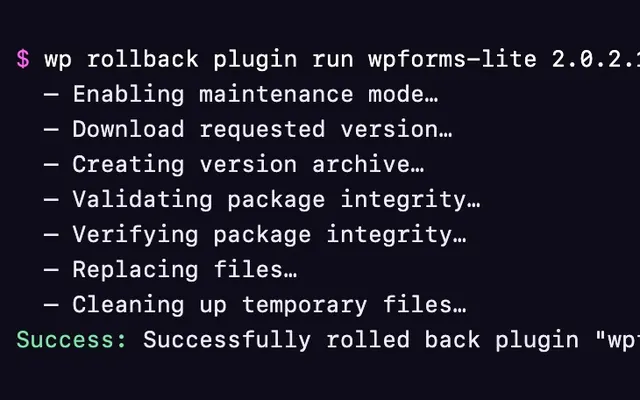
- By — the user who ran it. Rollbacks with no user, such as a WP-CLI rollback run without
--user, show as "System Update". - When — the date and time.
- Notes — the note saved with the rollback, or the error message when a rollback failed. Use Add Note or View Note to add or edit a note.
Use the menu in the card header to show Plugins + Themes, Plugins only, or Themes only. You can sort by Action, By, or When.
What gets recorded
WP Rollback Pro records two kinds of events:
| Action | Recorded when | Hook |
|---|---|---|
rollback | A plugin or theme rollback succeeds or fails, from the admin screens or WP-CLI | wpr_plugin_rollback_success, wpr_theme_rollback_success, wpr_plugin_rollback_failed, wpr_theme_rollback_failed |
archive | WP Rollback Pro saves a restore point | wpr_archive_created |
Installs, updates, activations, deactivations, and deletions are not recorded.
REST API
The page reads two endpoints. Both require the manage_options capability.
GET /wp-json/wp-rollback-pro/v1/dashboard/overviewReturns:
generated_at— when the payload was built.update_candidates— installed plugins and themes with an update available.assets— every installed plugin and theme, used by the search.
The response is cached for 5 minutes per user. Pass ?fresh=1 to skip the cache.
Recently rolled back and Rollback history read the activity log endpoint:
GET /wp-json/wp-rollback/v1/activity-logIt accepts page, per_page, orderby, order, type, action, and context query parameters. orderby, order, type, action, and context only accept a fixed list of values.
Multisite
When WP Rollback Pro is network activated, the Dashboard is at Network Admin → Settings → WP Rollback Pro. Subsites don't get their own WP Rollback Pro screen.
Privacy
The Dashboard reads the rollback_activity_log table. Each row stores the plugin or theme, the versions, the time, and the WordPress user who ran it.
The activity log works with WordPress's Export Personal Data and Erase Personal Data tools (under Tools). An export includes every row tied to that user. An erasure removes the user from those rows but keeps the rows themselves, so the record of what changed and when stays intact. WP Rollback Pro also adds suggested text to WordPress's Privacy Policy Guide.
Troubleshooting
See the Dashboard section of Troubleshooting.