


Licensing
WP Rollback Pro requires an active license to access premium features and receive ongoing updates and support.
License Creation & Delivery
After Purchase
After a successful purchase is made, a new license is automatically created and sent to the email address provided during the checkout process.
What you'll receive:
- License Key: Your unique activation key for WP Rollback Pro
- Purchase Confirmation: Details about your subscription and billing
- Installation Instructions: Step-by-step guide for activating your license
- Support Information: Access to premium support channels
Email Delivery
Your license email will be sent from our secure payment processor and may take a few minutes to arrive. Please check your spam/junk folder if you don't see it in your inbox.
License Management
Your WP Rollback Pro license can be fully managed through our secure Customer Dashboard.
Dashboard Features:
- View your current license key and activation status
- See all domains where your license is currently active
- Manage license activations and deactivate unused domains
- Update payment methods and billing information
- Access billing history and download invoices
- Manage subscription settings and renewal preferences
→ Access Your Customer Dashboard
License Requirements
Pro Version Activation
An active license is required to use the Pro version of WP Rollback.
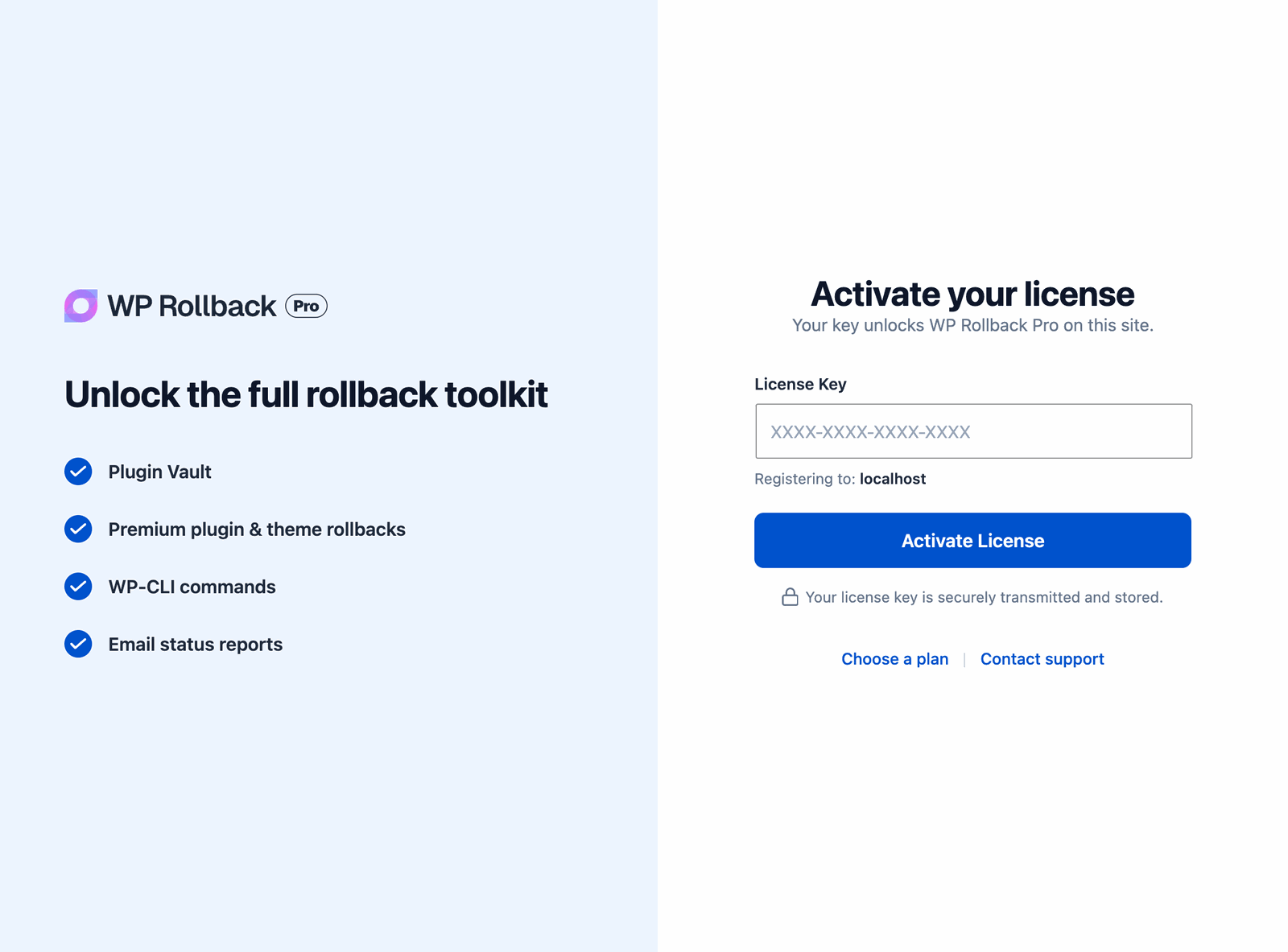
- Before you activate a license: Every WP Rollback Pro screen shows only the Activate your license card, and WordPress shows a "License required" notice on other admin screens. Activating Pro switches the free version off, so you can't roll back plugins or themes from WP Rollback's screens until the license is active.
- If your license expires: The Pro screens keep working, but Plugin Vault versions stop appearing. You also won't receive automatic updates or priority support until you renew.
License Activation Process
Step-by-Step Activation
1. Download and Install WP Rollback Pro
First, get the Pro plugin ZIP file from either your WP Rollback Pro Welcome Email or your Customer Dashboard (under "Downloads"). Save the .zip file to your computer — do not unzip it.
Switching from Free?
You don't need to remove WP Rollback (Free) first. Activating Pro switches the free version off for you, and your rollback history and backups carry over. Once Pro is active, you can delete the free version from Plugins → Installed Plugins. Delete it only after Pro is installed, so your rollback history is kept.
Then upload and install the plugin:
- In WordPress admin, go to Plugins → Add New Plugin
- Click the Upload Plugin button at the top of the page
- Click Choose File and select the
.zipfile you downloaded - Click Install Now and wait for the upload to complete
- Click Activate Plugin
For the full installation walkthrough with troubleshooting tips, see our Getting Started guide.
2. Access License Activation
- Go to Tools → WP Rollback Pro in your WordPress admin (on a network-activated multisite: Network Admin → Settings → WP Rollback Pro)
- Until your license is active, this screen shows the Activate your license card
- You can also click Activate License in the "License required" notice on other admin screens

3. Enter Your License Key
- Copy your license key from the welcome email or Customer Dashboard
- Paste it into the License Key field
- Click Activate License
4. Verification
- WP Rollback Pro checks your license with our servers
- Once the license is active, the Pro Dashboard loads right away. You don't need to refresh the page.
- Premium features are now available
License Key Location
Your license key can be found in:
- The WP Rollback Pro Welcome Email sent after purchase
- Your Customer Dashboard — displayed on the main page after login
- The purchase confirmation email from our payment processor
Managing Your License on the Site
Pro License Settings
Go to Tools → WP Rollback Pro → Settings → Pro License to see:
- License status: Whether the license is active and registered for this site
- Domain: The domain the license is registered to
- License key: The key in use on this site
To move a license to another site, deactivate it here first, then activate it on the new site. You can also deactivate sites from your Customer Dashboard.
If Your Site's Domain Changes
A license is registered to one domain. If you move a site to a new domain, or clone it to a staging site, the license isn't registered for the new domain. WP Rollback Pro shows the Activate your license card again on that site. Enter your license key to register the new domain. Each registered domain counts toward your activation limit, so deactivate domains you no longer use.
License Types & Limits
Activation Limits
Each WP Rollback Pro license includes a specific number of site activations depending on your subscription plan:
- Personal License: 1 site activation
- Freelancer License: 5 site activations
- Agency License: 25 site activations
Domain Types
Your license can be activated on:
- Production Sites: Live websites accessible to the public
- Staging Sites: Development and testing environments
- Local Development: Local installations for development work
Frequently Asked Questions
Q: If I activate a license on a subdomain or local version of my website, will it count against my licensing activation count?
A: Yes, at this time the licensing system does count subdomains and local sites against your activation limit. This includes:
- Subdomains (e.g.,
dev.mysite.com,staging.mysite.com) - Local development environments (e.g.,
localhost,127.0.0.1) - Development domains that differ from your production domain
If you need to whitelist a specific domain for development purposes, please contact support with your license key and the domain you'd like to whitelist.
Q: Where can I manage my active domains and license?
A: Your license, subscription, active domains, and more are managed through your Customer Dashboard. You can:
- View all currently activated domains
- Deactivate licenses from unused or development sites
- Update your billing information
- Download invoices and receipts
- Manage your subscription settings
→ Access Your Customer Dashboard
Troubleshooting License Issues
Common Problems
License Not Activating
- Verify your license key is entered correctly (no extra spaces)
- Check that your site can connect to our activation servers
- Ensure your license hasn't expired or been deactivated
License Shows as Invalid
- Confirm you're using the correct license key from your dashboard
- Check if your subscription is active and current
- Verify you haven't exceeded your activation limit
Lost License Key
- Check your email for the original welcome email
- Log into your Customer Dashboard
- Contact support if you can't locate your license key
Getting Help
If you're experiencing license activation issues:
- Review our troubleshooting guide
- Check the FAQ for common solutions
- Contact our support team at support@wprollback.com
License Renewal & Updates
Automatic Updates
With an active license, you'll receive:
- Automatic updates for WP Rollback Pro
- New feature releases and improvements
- Security patches and bug fixes
- Access to premium support
Renewal Process
- Licenses are billed annually
- You'll receive renewal reminders via email
- Automatic renewal can be enabled in your customer dashboard
- Failed payments will result in license deactivation
Security & Privacy
Your license information is protected by:
- SSL encryption for all license communications
- Secure token-based authentication
- PCI-compliant payment processing
- Regular security audits and updates
Need Help?
- 📧 Support Email: support@wprollback.com
- 🔗 Customer Dashboard: customer.paidcommunities.com
- 📖 Documentation: docs.wprollback.com
Ready to Activate?
Install WP Rollback Pro and navigate to Tools → WP Rollback Pro to begin the activation process.