


System Requirements
WP Rollback is designed to work on most standard WordPress hosting environments. This page outlines the requirements and recommendations for optimal performance.
Minimum Requirements
WordPress
- WordPress Version: 6.5 or higher
- PHP Version: 7.4 or higher
- Database: Any MySQL or MariaDB version your WordPress version supports
Server Requirements
- Memory Limit: 128MB minimum (256MB+ recommended)
- Max Execution Time: 60 seconds minimum (120+ seconds recommended for large plugins/themes)
- File Upload Size: 64MB minimum (100MB+ recommended)
- Disk Space: At least 500MB free for backups (varies based on plugin/theme sizes)
PHP Extensions
WP Rollback will work without all PHP extensions, but certain features require specific extensions:
Required for Core Functionality
- cURL or allow_url_fopen - Required for downloading packages from WordPress.org and remote sources
Automatic Backup Creation
WP Rollback automatically backs up premium (non-WordPress.org) plugins and themes before they update. The backup system works with:
Primary Method (Recommended):
- PHP ZipArchive Extension - Provides the fastest and most reliable backup creation
Fallback Method:
- PclZip (WordPress Core Library) - Automatically used when ZipArchive is unavailable
- Pure PHP implementation, no extension required
- Slower than ZipArchive but fully functional
Checking Your PHP Extensions
You can check which PHP extensions are installed on your server:
- Go to Tools → Site Health in WordPress admin
- Click the Info tab
- Expand the Server section
- Look for "zip" in the extensions list
Alternatively, create a PHP file with <?php phpinfo(); to view all installed extensions.
ZipArchive Not Available?
If the ZipArchive extension is not available on your server, WP Rollback will automatically fallback to using PclZip (included in WordPress Core). Backups will still work, but may take slightly longer to create. WP Rollback Pro needs ZipArchive for rollbacks. See Pro Version Additional Requirements.
Benefits of ZipArchive over PclZip:
- 3-5x faster backup creation
- Better memory efficiency for large files
- Native PHP implementation
How to Enable ZipArchive:
- Shared Hosting: Contact your hosting provider to enable the PHP zip extension
- VPS/Dedicated: Install via package manager:
- Ubuntu/Debian:
sudo apt-get install php-zip - CentOS/RHEL:
sudo yum install php-zip - Then restart your web server
- Ubuntu/Debian:
Recommended Server Configuration
For optimal performance, especially when working with large plugins, themes, or WordPress Core:
memory_limit = 256M
max_execution_time = 120
post_max_size = 100M
upload_max_filesize = 100M
WordPress Multisite
WP Rollback supports WordPress Multisite installations. Additional considerations:
- Must be activated network-wide or per-site (not both)
- Only Super Admins can perform rollbacks
- See the Multisite Guide for detailed setup instructions
Hosting Compatibility
WP Rollback has been tested and works on:
Managed WordPress Hosts
- ✅ WP Engine
- ✅ Kinsta
- ✅ Flywheel
- ✅ Pressable
- ✅ SiteGround
- ✅ Bluehost
- ✅ GoDaddy Managed WordPress
Cloud & VPS Providers
- ✅ DigitalOcean
- ✅ AWS (EC2, Lightsail)
- ✅ Google Cloud
- ✅ Linode
- ✅ Vultr
Local Development
- ✅ Local by Flywheel
- ✅ XAMPP
- ✅ MAMP
- ✅ Docker (wp-env, LocalWP, etc.)
- ✅ Valet
Local Development Note
When using WP Rollback in local development environments, ensure your wp-content/uploads directory is writable. The backup system creates a folder there for storing automatic backups, named wp-rollback- followed by 32 random characters.
Common Issues & Solutions
"Failed to create backup" Error
Cause: Insufficient disk space or permissions issues
Solution:
- Check available disk space
- Ensure
wp-content/uploadsis writable - Verify PHP has write permissions
Backup Creation is Slow
Cause: Using PclZip fallback instead of ZipArchive
Solution: Ask your hosting provider to enable the PHP ZipArchive extension
"Package too large" Error
Cause: PHP memory or upload limits too low
Solution: Increase PHP limits in your hosting control panel or contact your host:
memory_limit = 256M
upload_max_filesize = 100M
post_max_size = 100M
Security Considerations
WP Rollback follows WordPress security best practices:
- ✅ Nonce verification on all form submissions
- ✅ Capability checks ensure only authorized users can perform rollbacks
- ✅ Package validation verifies file integrity before installation
- ✅ Backup directory protection through a hard-to-guess folder name, plus
.htaccessand index files - ✅ Sanitization of all user inputs
- ✅ File type restrictions follow WordPress Core standards
Backups are stored in a private folder inside wp-content/uploads/, named wp-rollback- followed by 32 random characters. The random name is the main protection, because it makes the folder's web address hard to guess. WP Rollback also adds an .htaccess file that blocks direct web access on Apache servers, and index files that stop the folder's contents from being listed.
Getting Help
If you're experiencing issues related to system requirements:
- Check the Troubleshooting Guide
- Review the FAQ
- Contact your hosting provider for server configuration assistance
- For Pro customers, submit a support ticket via the Customer Dashboard
Pro Version Additional Requirements
The Pro version includes additional features with specific requirements:
Activity Log
- Database storage for rollback history
- Minimal additional disk space (~1-5MB for typical usage)
Rollbacks
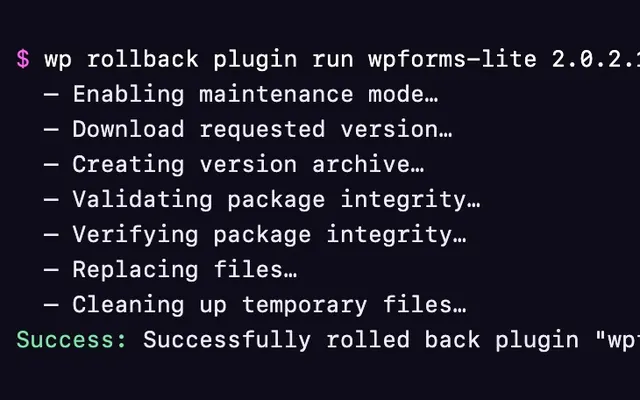
- PHP zip extension (ZipArchive): Pro checks every package before installing it (see Package Validation), and that check needs ZipArchive. Without it, Pro rollbacks fail. The PclZip fallback only covers backups.
Plugin Vault
- Outbound HTTPS connections from your server to the Plugin Vault service
- A working WP-Cron. Vault contributions from your site run once a day as a scheduled task.
Email Status Reports
- Your site must be served over HTTPS
- WordPress must be able to send email. An SMTP plugin is recommended (see Email deliverability).
- A valid Administration Email Address in Settings → General. Reports are sent from this address.
- A working WP-Cron, because reports are sent on a schedule
- Email reports aren't available on multisite yet
Advanced Settings
- No additional requirements beyond base plugin
Priority Support
- Valid license key required
- See Licensing for details