


Theme Rollbacks
Theme rollbacks allow you to safely revert any WordPress theme to a previous version, helping you maintain your site's appearance and functionality when updates cause issues.
When to Use Theme Rollbacks
Common Scenarios
- Design Changes: New theme version changes your site's appearance
- Functionality Loss: Important theme features removed or modified
- Compatibility Issues: Theme conflicts with plugins or WordPress version
- Performance Problems: New version causes slower loading times
- Customization Conflicts: Updates break your custom modifications
Warning Signs
- Site layout appears broken or distorted
- Missing theme options or customization settings
- Slower page load times
- JavaScript errors in browser console
- Responsive design issues on mobile devices
How to Roll Back Themes
You need the update_themes capability to roll back a theme. Users who can update themes but not plugins can roll back themes. On multisite, only Super Admins can roll back themes, from Network Admin > Themes. See Multisite.
From Themes Page
- Navigate to Appearance > Themes
- Find the theme you want to roll back
- Click Theme Details to open the theme information
- Click the Rollback button
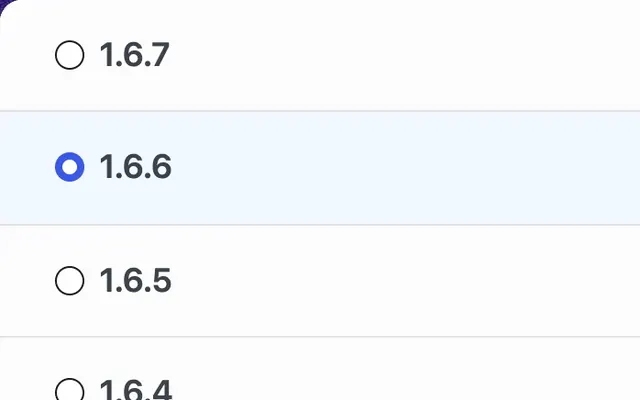
- Select the version you want to roll back to
- Confirm the rollback process
From WP Rollback Dashboard
WP Rollback (Free)
- Go to Tools > WP Rollback
- Click on the Roll back a theme button
- Find your theme in the list
- Click Rollback to access version options
- Select version and confirm rollback
WP Rollback Pro
- Go to Tools > WP Rollback Pro
- On the Dashboard, search for the theme under Restore a previous version, or click Themes in the sidebar
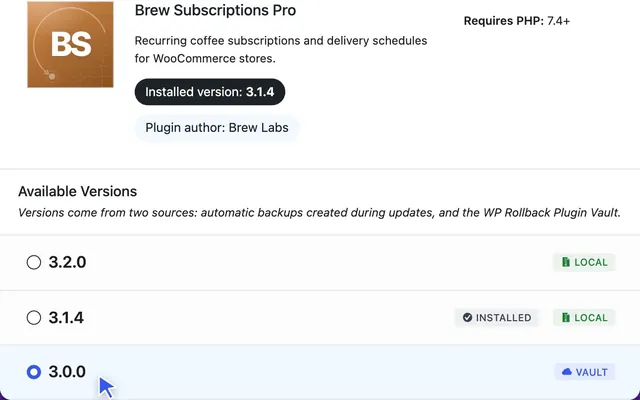
- Open your theme to see its versions
- Select version and confirm rollback
Theme Rollback Process
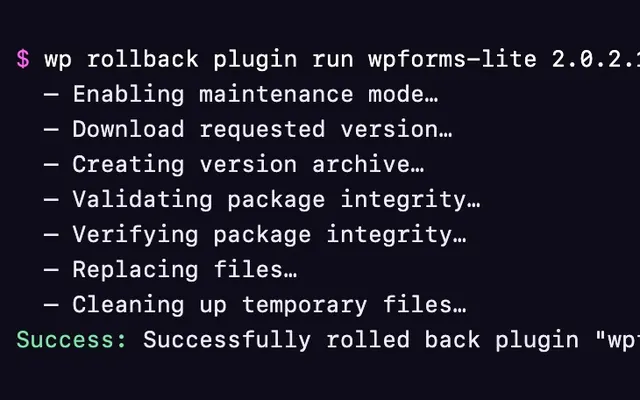
When you confirm, WP Rollback shows each step on screen as it runs. See How Rollbacks Work for more detail.
Step 1: Enabling maintenance mode…
- Turns on maintenance mode if you're rolling back the active theme or the active theme's parent
- Visitors see a short maintenance page. Logged-in users who can update themes see the site normally.
- Skipped for inactive themes
Step 2: Download requested version…
- WP Rollback (Free) downloads the version from WordPress.org
- WP Rollback Pro uses a Local archive of that version if your site has one. If not, it asks Plugin Vault for it (with an active license), and downloads from WordPress.org if the Vault doesn't have it.
Step 3: Creating version archive…
- For premium themes, creates a zip archive of the installed version before it's replaced
- Stores the archive in a private
wp-rollback-folder insidewp-content/uploads - Skipped for WordPress.org themes
Step 4: Validating package integrity…
- WP Rollback (Free) checks that the downloaded file is there
- WP Rollback Pro runs full package validation, including a check that the package contains theme files
Step 5: Verifying package integrity… (Pro only)
- Checks the SHA-256 checksum of Plugin Vault downloads and stops the rollback if it doesn't match
- Skipped for WordPress.org downloads and Local archives
Step 6: Replacing files…
- Checks that the download is a valid ZIP file
- Removes the current theme folder and unzips the version you picked into
wp-content/themes - The active theme stays active. Theme settings saved in the database are kept.
- Clears PHP's code cache for the replaced files
- Turns maintenance mode off
Step 7: Cleaning up temporary files…
- Turns maintenance mode off if it's still on
- Deletes the downloaded ZIP and the temporary data WP Rollback stored for this rollback
What Gets Preserved
Usually Preserved
- Customizer Settings: Colors, fonts, layout options
- Widget Configurations: Sidebar and widget area contents
- Menu Assignments: Navigation menu locations
- Theme Options: Settings stored in the database
May Be Lost
- New Theme Features: Settings for features added in newer versions
- Deprecated Options: Settings that no longer exist in the older version
- Custom Code: Modifications made to theme files directly
Child Themes and Rollbacks
Parent Theme Rollbacks
- Rolling back parent theme doesn't affect child theme
- Child theme customizations remain intact
- Functions.php modifications preserved
- Style.css overrides continue to work
Child Theme Rollbacks
- Less common but possible for child themes from repository
- Parent theme remains unchanged
- Child theme customizations may be lost
- Manual backup recommended for child themes
Troubleshooting Theme Rollbacks
Common Issues
"Theme Not Found"
- WP Rollback (Free): verify the theme is from the WordPress.org repository. Premium themes show a WP Rollback Pro upgrade screen instead.
- WP Rollback Pro: premium themes are supported. Their versions come from Local archives and Plugin Vault. If neither has an older version, only the installed version is listed.
- Check if theme slug matches exactly
- Some themes may have been renamed
"Version Not Available"
- For free version users: verify the theme is listed on WordPress.org and the version hasn't been removed by the author
- For Pro users: check whether a Vault version is available — Vault coverage grows as more Pro users contribute
- For premium themes, look for Local versions in the list. WP Rollback saves these before each update, in a private
wp-rollback-folder insidewp-content/uploads.
"Broken Layout"
- Clear all caches (site, CDN, browser)
- Check for conflicting plugins
- Verify theme files uploaded correctly
"Missing Customizations"
- Some settings may be version-specific
- Check Customizer for available options
- Review theme documentation for changes
Advanced Troubleshooting
Debug Mode
Enable WordPress debug mode for detailed error information:
define('WP_DEBUG', true);
define('WP_DEBUG_LOG', true);
Manual Theme Rollback
If automatic rollback fails:
- Download desired theme version manually
- Upload via FTP to
/wp-content/themes/ - Replace the theme folder
- Refresh your site
Database Cleanup
Some themes store settings that may conflict:
- Check
wp_optionstable for theme options - Look for theme-specific database entries
- Consider using plugins to clean up unused options
Pro Features for Theme Rollbacks
Premium Theme Support
Pro users can roll back premium themes via two sources:
- Plugin Vault — A shared, verified library of premium theme ZIPs contributed by the WP Rollback Pro community. Vault versions of premium themes are available as soon as your Pro license is active. No prior update or archive setup is required. A valid license for the theme is required.
- Local Backups — WP Rollback archives a premium theme before each update and before each rollback. These appear as Local versions in the rollback UI.
Works with premium themes from any source: Envato/ThemeForest, Kadence Pro, Astra Pro, GeneratePress Pro, Divi, and more.
Best Practices
Before Rolling Back
- Full Site Backup: Create complete backup including database
- Screenshot Documentation: Take screenshots of current appearance
- Customization Notes: Document current customizations
- Staging Test: Test rollback on staging site first
After Rolling Back
- Visual Inspection: Check all pages and posts
- Functionality Testing: Test all theme features
- Mobile Testing: Verify responsive design works
- Performance Check: Monitor site loading times
Ongoing Management
- Regular Backups: Maintain current backups
- Update Testing: Test theme updates on staging
- Documentation: Keep records of working configurations
- Monitor Changes: Track theme update changelogs
Theme-Specific Considerations
Block Themes (FSE)
- Site editor customizations preserved
- Global styles maintained
- Block patterns and templates retained
- Full site editing features version-dependent
Classic Themes
- Customizer settings preserved
- Widget configurations maintained
- Menu assignments retained
- Custom CSS preserved
Hybrid Themes
- May support both classic and block editor
- Customization method affects what's preserved
- Feature availability varies by version
- Testing recommended after rollback
Limitations and Considerations
Version Availability
- Free version: Limited to versions available in the WordPress.org repository. Versions removed by the theme author will not appear. Premium themes need WP Rollback Pro.
- Pro version: WordPress.org themes list WordPress.org versions. Premium themes list Plugin Vault versions and locally archived versions. Vault coverage for a given theme depends on community contributions.
Customization Compatibility
- Direct file modifications will be lost
- Some customizations may not be compatible
- Version-specific features may disappear
Performance Impact
- Older versions may have different performance characteristics
- Security considerations with older versions
- Feature compatibility with current plugins
Next Steps
- Explore Pro Features for advanced theme management
- Read the Plugin Vault documentation for coverage, verification, and license requirements
- Check Troubleshooting Guide for common issues