


Troubleshooting Guide
This comprehensive troubleshooting guide helps you resolve common issues with WP Rollback and provides solutions for both basic and advanced problems.
Common Issues and Solutions
Installation and Activation Issues
Installing WP Rollback Pro from a ZIP File
Symptoms: You've purchased WP Rollback Pro and received a ZIP file but aren't sure how to install it, or the upload isn't working.
Step-by-Step Installation:
- Download the ZIP from your welcome email or Customer Dashboard. Save the
.zipfile to your computer. Do not unzip it — WordPress needs the original.zipfile. - Upload the ZIP: Go to Plugins → Add New Plugin → click Upload Plugin at the top → click Choose File → select your
.zipfile → click Install Now. - Activate: Click Activate Plugin when the install finishes. If WP Rollback (Free) is active, Pro switches it off for you. Your rollback history and backups carry over.
- Enter your license key: Go to Tools → WP Rollback Pro (on multisite, Network Admin → Settings → WP Rollback Pro). Paste your key from the welcome email and click Activate License.
- Delete the free version (optional): Once Pro is active, you can delete WP Rollback from Plugins → Installed Plugins. Only do this after Pro is installed. Deleting WP Rollback (Free) while Pro isn't installed also deletes your rollback history.
For the full walkthrough, see Getting Started → Pro Installation.
ZIP Upload Errors
"The link you followed has expired"
- Cause: Your hosting server has a file upload size limit that's too small.
- Solution: Ask your hosting provider to increase
upload_max_filesizeandpost_max_sizeto at least 64MB. On some hosts you can adjust this in your PHP settings or.htaccessfile.
"The package could not be installed. No valid plugins were found."
- Cause: The ZIP file is corrupted or was unzipped and re-zipped manually.
- Solution: Re-download the original ZIP from your Customer Dashboard and upload it without unzipping.
"Destination folder already exists"
- Cause: WP Rollback Pro is already installed, or an old
wp-rollback-profolder is left inwp-content/plugins/. The free version uses a different folder (wp-rollback), so it can't cause this. - Solution: If WordPress shows a Replace current with uploaded button under the message, click it. This updates Pro and keeps your settings and license. Don't delete WP Rollback Pro to reinstall it: deleting it removes its settings, including your license. If there's no button, the old folder isn't a working install. Remove
wp-content/plugins/wp-rollback-prowith FTP or your host's file manager, then upload again.
Alternative installation via FTP: If uploading through WordPress doesn't work, unzip the file on your computer and upload the extracted wp-rollback-pro folder to /wp-content/plugins/ on your server using FTP or your hosting file manager, then activate from the Plugins page.
Plugin Won't Activate
Symptoms: Error message when trying to activate WP Rollback
Possible Causes:
- PHP version incompatibility
- Missing required PHP extensions
- File permission issues
You don't need to remove the free version first. Activating Pro switches WP Rollback (Free) off automatically.
Solutions:
- Check PHP Version: Ensure PHP 7.4 or higher (see System Requirements)
- Verify Extensions: Check required PHP extensions are installed (see System Requirements)
- File Permissions: Ensure plugin directory has correct permissions (755)
- Plugin Conflicts: Deactivate other plugins and test
"WP Rollback Pro is paused while WP Rollback (Free) is active."
Symptoms: The WP Rollback Pro menu is gone, and this notice shows at the top of admin screens.

Cause: WP Rollback (Free) was activated again while Pro is installed. The two can't run at the same time, so Pro pauses.
Solutions:
- Click Deactivate WP Rollback (Free) in the notice. Pro comes back with your history, backups and license.
- If the notice shows Open Plugins screen instead, click it and deactivate WP Rollback there.
- You can delete WP Rollback (Free) afterwards. Keep Pro installed while you do.
License Activation Problems (Pro)
Symptoms: Pro license won't activate or validates incorrectly
Possible Causes:
- Incorrect license key
- License exceeds site limit
- Server connectivity issues
- Licensing server downtime
Solutions:
- Verify License Key: If you see "Invalid license key. Please check your key and try again.", copy the key again from your Customer Dashboard to avoid typos or extra spaces
- Check License Status: Verify license is active and not expired in your dashboard
- Deactivate Other Sites: Deactivate license on other sites if your activation limit has been reached
- Check Connectivity: If you see "An error occurred while activating your license.", the request didn't complete. Ensure your server can connect to our licensing server (some firewalls block outbound connections), then try again
Moved the Site and Now Only See the Activation Screen (Pro)
Symptoms: After moving or cloning a site to a new domain, every WP Rollback Pro screen shows the Activate your license card. Other admin screens show the notice "License registration required."
Cause: A license is registered to one domain. The new domain isn't registered yet.
Solutions:
- Go to Tools → WP Rollback Pro, check the domain next to Registering to:, enter your license key and click Activate License
- If you've reached your activation limit, deactivate the old domain in your Customer Dashboard first
Rollback Process Issues
"No versions available" or Version Not Listed
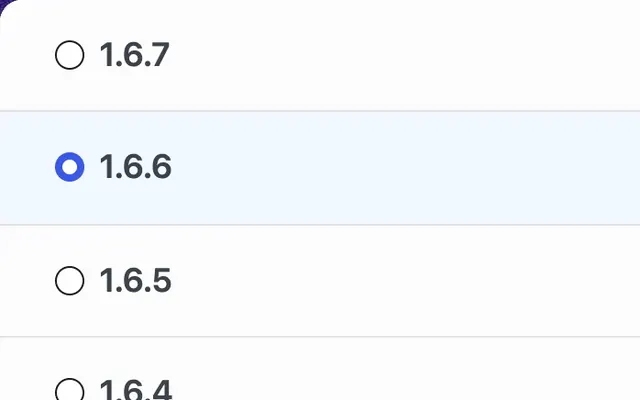
Symptoms: The rollback screen shows "No versions available", the version you want isn't in the list, or the free plugin shows "Roll back [plugin name] with Pro" with the versions locked.
Possible Causes:
- Version was removed from the WordPress.org repository by the plugin/theme author
- Plugin/theme is premium and not on WordPress.org
- Vault coverage doesn't include this version yet (Pro users)
- No local backup exists for this version
Solutions:
- Try a different version: Select an adjacent version that is available
- Pro users — check Plugin Vault: If the version you need isn't in the Vault yet, it may be contributed by the community over time
- Check local backups: In Pro, open Tools → WP Rollback Pro → Archives to find a version backed up before a previous update
- Upgrade to Pro: If you're on the free version and need a premium plugin/theme version, Pro provides access to Plugin Vault and your local backups
- Contact Support: If the issue persists, reach out to support
Rollback Process Hangs or Fails
Symptoms: Rollback starts but never completes or fails partway through
Possible Causes:
- A security plugin, firewall (WAF) or your host blocks the WordPress REST API (
/wp-json/) - Insufficient file permissions
- Disk space limitations
- Memory or timeout limitations
- File corruption issues
Solutions:
- Allow the REST API: WP Rollback runs every rollback step through
/wp-json/. If it's blocked, the rollback fails with "Failed to fetch rollback steps." or "The response is not a valid JSON response." Allow/wp-json/requests from logged-in admins in your security plugin or firewall, or ask your host - Check Permissions: Verify write permissions on plugin/theme directories
- Free Disk Space: Ensure sufficient free disk space
- Increase Limits: Increase PHP memory_limit and max_execution_time
- Manual Verification: Check for file corruption or incomplete downloads
Site Shows "Maintenance Mode" After a Rollback
Symptoms: Logged-out visitors see a "Maintenance Mode" page after a rollback, often one that reported an error. The site looks normal while you're logged in as an admin.
Cause: While WP Rollback replaces an active plugin or theme, visitors see a maintenance page. It's turned off as soon as the files are replaced, or right away if a step fails. Versions before WP Rollback 3.2.0 and WP Rollback Pro 2.0.0 could leave it on after a failed rollback.
Solutions:
- Wait: The maintenance page turns itself off after 10 minutes
- Delete the flag file: Delete
.wpr-maintenancefrom your WordPress root folder (the same folder aswp-config.php) using FTP or your host's file manager - Update WP Rollback: Update to the latest version so a failed rollback always turns maintenance mode off
You don't need to deactivate or reinstall WP Rollback.
Permission Denied Errors
Symptoms: "Permission denied" errors during rollback process
Possible Causes:
- Incorrect file permissions
- Ownership issues
- Hosting provider restrictions
Solutions:
- File Permissions: Set correct permissions (755 for directories, 644 for files)
- Ownership: Ensure web server owns the files
- Hosting Support: Contact hosting provider for permission issues
Premium Assets Not Showing Rollback Options
Symptoms: No rollback options available for premium plugins or themes
Possible Causes:
- Using the free version (Plugin Vault and local backup UI are Pro-only)
- Pro license not properly activated
- Version not yet available in Plugin Vault
- No local backup exists (WP Rollback wasn't active when the last update ran)
Solutions:
- Verify Pro is activated: Check Tools → WP Rollback Pro → Settings → Pro License to confirm your license is active
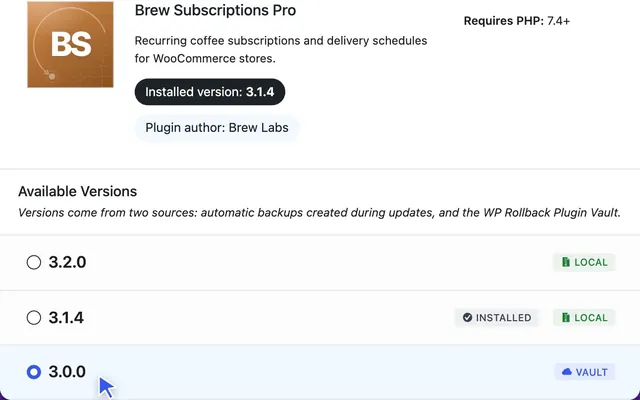
- Check Plugin Vault availability: Open the rollback UI for the plugin or theme and look for versions labeled Vault — if none appear, the version may not be in the Vault yet
- Check local backups: Open Tools → WP Rollback Pro → Archives to see if a local backup exists
- Upgrade to Pro: If you're on the free version, upgrade to access Plugin Vault and the local backup rollback UI
Backup Creation Issues
WP Rollback stores backups in a private folder in wp-content/uploads named wp-rollback- followed by 32 random characters. Before WP Rollback 3.2.0 and WP Rollback Pro 2.0.0, backups were in wp-content/uploads/wp-rollback/. They're moved to the private folder automatically when you update.
Local Backups Not Being Created
Symptoms: No backups show up after you update a plugin or theme (in Pro, Tools → WP Rollback Pro → Archives is empty)
Possible Causes:
- The plugin or theme is from WordPress.org. Only premium (non-WordPress.org) plugins and themes are backed up, since WordPress.org already hosts past versions
- WP Rollback was not active when the update occurred
- Insufficient disk space
- Write permission issues on the uploads directory
Solutions:
- Check where the plugin or theme comes from: WordPress.org updates are never backed up. You can roll those back to any version on WordPress.org instead.
- Ensure WP Rollback is active before updating: Local backups are only created when WP Rollback is active at the time of the update. Note: Pro users can still access Plugin Vault versions even without a local backup.
- Check Disk Space: Ensure adequate free disk space (see System Requirements)
- Verify Permissions: Ensure
wp-content/uploadsis writable - Check the backup limit: WP Rollback keeps 5 backups per plugin or theme, and WP Rollback Pro keeps 25 by default. The oldest backup is removed when a new one would go over the limit. In Pro, change it under Tools → WP Rollback Pro → Settings → Archives (Number of version archives per asset).
Automatic Fallback
If the PHP ZipArchive (zip) extension is not available, WP Rollback uses WordPress Core's PclZip library to create backups. Backups will still be created, though slower. The fallback only covers creating backups: WP Rollback Pro needs the PHP zip extension to roll back (see "ZIP functionality is not available for package validation.").
A Backup Is Missing After an Update
Symptoms: A premium plugin or theme updated, but there's no backup of the version it replaced
Cause: Backup failures are silent on purpose, so they never block the update. You won't see an error message.
Solutions:
- Turn on debug logging: Add
WP_DEBUGandWP_DEBUG_LOGtowp-config.php(see Debug Mode and Logging). WP Rollback only logs backup failures whileWP_DEBUGis on - Check the log after the next update: Search
wp-content/debug.logfor[WP Rollback] Backup creation failed. The rest of the line says why - Free Disk Space: Delete old backups or unused files
- Verify Permissions: Ensure
wp-content/uploadsis writable - Increase Memory: Raise PHP memory_limit (see System Requirements)
Updates Should Never Fail
WP Rollback is designed to NEVER block plugin/theme updates. If backup creation fails, the update will proceed normally - you just won't have an automatic backup for that specific update.
Backups or Rollback History Missing After Updating
Symptoms: After updating to WP Rollback 3.2.0 or WP Rollback Pro 2.0.0, older backups or rollback history don't show up
Possible Causes:
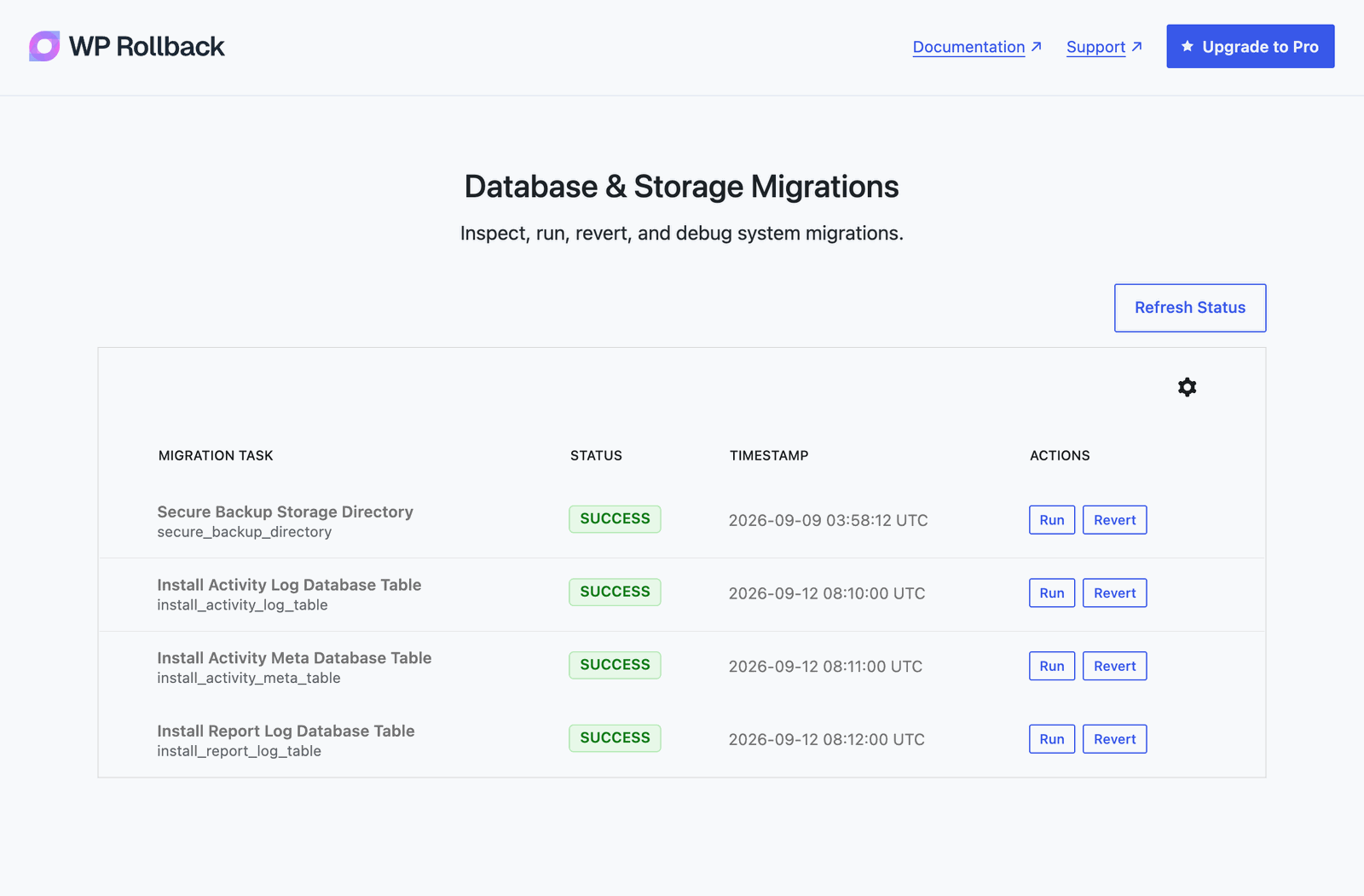
- A one-time migration failed. Updates run migrations, such as Secure Backup Storage Directory, which moves backups from
wp-content/uploads/wp-rollback/into the private folder. A failed migration doesn't retry on its own - WP Rollback (Free) was deleted before Pro was installed. That deletes the rollback history, and it can't be restored
Solutions:
- Open the Migrations screen: It isn't in the menu, so enter the address directly:
- WP Rollback:
/wp-admin/tools.php?page=wp-rollback#/migrations - WP Rollback Pro:
/wp-admin/tools.php?page=wp-rollback-pro#/migrations(needs an activated license) - Multisite:
/wp-admin/network/settings.php?page=wp-rollback#/migrations, orpage=wp-rollback-profor Pro
- WP Rollback:
- Retry failed migrations: If a migration's status is failed, click Retry, then Retry Migration to confirm. For a pending one, click Run, then Run Migration
- See why it failed: Turn on the Description column from the table's View options, then click View Error Log
- Backups still missing: If
wp-content/uploads/wp-rollback/still exists, copy it somewhere safe first. Then click Run on Secure Backup Storage Directory - Leave Revert alone: Revert undoes a migration. Only use it if support asks you to
Slow Backup Creation
Symptoms: Updates take significantly longer than usual
Possible Causes:
- Using PclZip fallback instead of ZipArchive
- Large plugin/theme files
- Slow disk I/O
Solutions:
- Enable ZipArchive: Install the PHP ZipArchive extension for faster backups (see System Requirements)
- Optimize Server: Upgrade to faster storage (SSD vs HDD)
- Review Archive Limits: In Tools → WP Rollback Pro → Settings → Archives, lower the archive limit to reduce disk usage
Version and Compatibility Issues
Plugin/Theme Won't Activate After Rollback
Symptoms: Plugin or theme won't activate after successful rollback
Possible Causes:
- Version incompatibility with current WordPress version
- Missing dependencies
- Database schema conflicts
- PHP version incompatibility
Solutions:
- WordPress Compatibility: Check plugin/theme WordPress version requirements
- Dependency Check: Verify all required plugins/themes are present
- Database Updates: Run any required database updates
- PHP Compatibility: Ensure PHP version meets requirements
Settings or Data Lost After Rollback
Symptoms: Plugin/theme settings disappear after rollback
Possible Causes:
- Settings format changed between versions
- Database table structure changes
- Option names changed
- Data migration issues
Solutions:
- Settings Restore: Restore settings from previous configuration if available
- Database Check: Verify database tables and options are intact
- Version Comparison: Check differences between versions
- Manual Reconfiguration: Reconfigure settings manually if necessary
Performance Issues
Slow Rollback Process
Symptoms: Rollbacks take much longer than expected
Possible Causes:
- Large plugin/theme files
- Slow internet connection
- Server resource limitations
- Multiple simultaneous operations
Solutions:
- Connection Speed: Test and improve internet connection
- Resource Allocation: Increase server resources (CPU, memory)
- Schedule Operations: Perform rollbacks during low-traffic times
Site Performance Degradation
Symptoms: Site becomes slower after installing WP Rollback
Possible Causes:
- Plugin overhead
- Inefficient caching
- Resource conflicts
- Database queries
Solutions:
- Performance Monitoring: Monitor site performance metrics
- Cache Optimization: Optimize caching settings
- Query Optimization: Identify and optimize slow database queries
- Resource Monitoring: Monitor server resource usage
Network and Connectivity Issues
Download Failures
Symptoms: Plugin/theme downloads fail during rollback
Possible Causes:
- Network connectivity issues
- Firewall restrictions
- SSL certificate problems
- WordPress.org API issues
Solutions:
- Network Test: Test connectivity to WordPress.org
- Firewall Check: Verify firewall allows outbound connections
- SSL Verification: Check SSL certificate validity
- Alternative Methods: Use manual download as fallback
API Connection Problems
Symptoms: Cannot connect to WordPress.org API
Possible Causes:
- Blocked ports or protocols
- Proxy server issues
- DNS resolution problems
- Server-side restrictions
Solutions:
- Port Check: Verify required ports are open
- Proxy Configuration: Configure proxy settings if needed
- DNS Test: Test DNS resolution for target domains
- Server Configuration: Check server-side restrictions
Database and File System Issues
Database Connection Errors
Symptoms: Database errors during rollback process
Possible Causes:
- Database server downtime
- Connection limit exceeded
- Corrupt database tables
- Insufficient database permissions
Solutions:
- Database Status: Check database server status
- Connection Limits: Increase database connection limits
- Table Repair: Repair corrupt database tables
- Permission Check: Verify database user permissions
File System Errors
Symptoms: File system errors during rollback operations
Possible Causes:
- Permission restrictions
- Disk space exhaustion
- File system corruption
Solutions:
- Permission Audit: Audit and correct file permissions
- Disk Space: Free up disk space
- File System Check: Run file system check and repair
Dashboard
The WP Rollback Pro Dashboard (Tools → WP Rollback Pro → Dashboard) has a search box for any installed plugin or theme, Available updates, Recently rolled back, and Rollback history.
Dashboard shows "We could not load the dashboard data. Please refresh."
Symptoms: An error notice appears at the top of the Dashboard. Search finds nothing and Available updates is empty.
Cause: The request for the dashboard data failed. The notice shows this message or the error WordPress returned. Only administrators can load the dashboard data; other users see "You do not have permission to view the WP Rollback dashboard."
Solutions:
- Reload the page.
- Sign in as an administrator.
- Allow the REST API. The Dashboard loads its data from
/wp-json/. If a security plugin, firewall or your host blocks it, allow/wp-json/requests from logged-in admins. - Check for PHP errors in
wp-content/debug.log(see Debug Mode and Logging).
Recent installs or updates don't show up
Symptoms: A plugin or theme you just installed or updated isn't in Recently rolled back or Rollback history.
Cause: The Dashboard only records rollbacks and restore points (the backups WP Rollback Pro makes of premium plugins and themes). Installs, updates, activations and deletions aren't logged.
Solutions:
- Check the type filter. Rollback history can show Plugins + Themes, Plugins only or Themes only.
- Wait a few minutes. Available updates can be up to 5 minutes old. Reload the page after that.
Wrong action badges after upgrading from Pro 1.x
Symptoms: After upgrading from Pro 1.x to 2.0, some rows in Rollback history show the wrong action badge (e.g. an old backup shows up as Rollback instead of Archive).
Cause: Pro 2.0 adds an action column to the rollback history. A one-time migration, Add Action and Context Columns to Activity Log, labels older backups as Archive. If it didn't run, or failed, those rows show as Rollback.
Solutions:
- Open the Migrations screen: go to
/wp-admin/tools.php?page=wp-rollback-pro#/migrations(multisite:/wp-admin/network/settings.php?page=wp-rollback-pro#/migrations). - Run the migration: find Add Action and Context Columns to Activity Log and click Run (or Retry if it failed), then confirm. Don't click Revert.
- Reload the Dashboard.
No WP Rollback Pro menu on multisite sites
Symptoms: On a multisite network, individual sites have no WP Rollback Pro menu.
Cause: WP Rollback Pro is network-activated, so it only appears in Network Admin.
Solution: Go to Network Admin → Settings → WP Rollback Pro. Email reports aren't available on multisite yet.
Status Reports
Status reports never arrive
Symptoms: You enabled status report emails but no email ever arrives, including test sends.
Possible Causes:
- The site isn't served over HTTPS. Reports need HTTPS (local development hostnames such as
localhost,*.localand*.testare exempt). The Email Reports tab shows "Email reports require HTTPS…", Send test report is disabled, and every scheduled send is logged as failed. - The first report isn't due yet. It goes out one full period (a week, month or quarter) after you turn reports on or change the frequency. Nothing is sent right away.
- The site is a multisite network. Email reports aren't available on multisite yet.
- The site admin email is missing or invalid. Sends are skipped and nothing is logged. Set a valid address in Settings → General.
- The recipient unsubscribed. They stay excluded until you click Re-subscribe next to them under Previously unsubscribed.
- The list has more than 50 recipients. Only the first 50 get the report.
Solutions:
- Verify the cron is scheduled. Open Tools → WP Rollback Pro → Settings → Email Reports and confirm the "Next scheduled report" timestamp is in the future.
- Reload the page instead of toggling reports. The schedule repairs itself on the next wp-admin page load, so you don't need to turn reports off and on. If the time shown has already passed, WP-Cron isn't running (see step 5). If it still says "Not scheduled" after a reload, contact support.
- Send a test report. Send test report sends to your own user email only, not to the recipient list. You can send 3 tests every 5 minutes; after that you'll see "Test send limit reached. Try again in a few minutes." The "Test report sent to …" message only means WordPress was handed the email. Check the send log (step 6) to see whether it failed. If test reports fail too, your site's mail setup is the problem, not WP Rollback.
- Install an SMTP plugin. WordPress's default
mail()transport often has poor deliverability. Install WP Mail SMTP or FluentSMTP and configure an authenticated provider (Postmark, Mailgun, Amazon SES, SendGrid, etc.). - Check for WP-Cron lag. On low-traffic sites the built-in cron only runs when someone visits. Add
define('DISABLE_WP_CRON', true);towp-config.phpand add a real OS cron entry hittingwp-cron.phpevery 5–15 minutes. - Inspect the send log. The
rollback_report_logdatabase table records every send attempt, including test sends, with status and error message. Rows older than 90 days are deleted automatically. Direct query (replace the prefix with whatever your site uses):sqlSELECT sent_at, recipient_email, status, error_message FROM wp_rollback_report_log ORDER BY sent_at DESC LIMIT 10;
Gmail doesn't show the one-click Unsubscribe button
Symptoms: The footer "Unsubscribe" link works, but Gmail (or Outlook) doesn't show the inbox-level one-click unsubscribe button at the top of the message.
Cause: Per RFC 8058, Gmail and Outlook only honor one-click unsubscribe when the message has a valid DKIM signature whose h= tag covers the List-Unsubscribe and List-Unsubscribe-Post headers.
Solutions:
- Use a transactional email provider that DKIM-signs all custom headers (Postmark, Mailgun, Amazon SES, SendGrid). Most do so automatically.
- Verify your domain's DKIM, SPF, and DMARC records are set up correctly for the sending domain. Tools like
mxtoolbox.comcan check. - WP Rollback Pro emits the headers correctly; this is purely an MTA / domain-authentication concern outside the plugin.
The visible "Unsubscribe" link in the email footer always works regardless of DKIM coverage.
Advanced Troubleshooting
Debug Mode and Logging
Enabling Debug Mode
Add these constants to your wp-config.php file:
define('WP_DEBUG', true);
define('WP_DEBUG_LOG', true);
define('WP_DEBUG_DISPLAY', false);
Finding WP Rollback Messages in the Log
WP Rollback has no debug setting of its own. It writes to the log only while WP_DEBUG is on. With the constants above, open wp-content/debug.log and search for these prefixes:
[WP Rollback]: a backup failed during an update, or maintenance mode couldn't be turned off[WP Rollback Migration Error]: an update migration failed (see Backups or Rollback History Missing After Updating)[WP Rollback Shared]: the backup folder or maintenance mode couldn't be set up
Log Analysis
- Error Patterns: Look for recurring error patterns
- Timing Issues: Check for timeout or timing-related errors
- Memory Usage: Monitor memory usage during operations
- API Responses: Check API response codes and messages
Manual Rollback Procedures
Manual Plugin Rollback
If automatic rollback fails:
- Download Version: Download desired version from WordPress.org
- Deactivate Plugin: Deactivate the plugin in WordPress admin
- Preserve Current: Preserve current plugin directory
- Replace Files: Replace plugin files with downloaded version
- Reactivate Plugin: Reactivate the plugin
Manual Theme Rollback
If automatic theme rollback fails:
- Download Theme: Download desired theme version
- Preserve Current: Preserve current theme directory
- Replace Files: Replace theme files with downloaded version
- Clear Cache: Clear any theme caches
- Verify Operation: Check site frontend and admin
Database Troubleshooting
Database Query Analysis
Monitor database queries during rollbacks:
- Query Logging: Enable MySQL query logging
- Performance Analysis: Analyze slow query log
- Index Optimization: Optimize database indexes
- Query Caching: Implement query caching
Database Repair and Maintenance
- Table Repair: Use MySQL REPAIR TABLE command
- Database Optimization: Run database optimization routines
- Database Verification: Verify database integrity is complete
- Consistency Checks: Run database consistency checks
Server Configuration Issues
PHP Configuration
Check and adjust PHP settings:
memory_limit = 256M
max_execution_time = 300
upload_max_filesize = 64M
post_max_size = 64M
Web Server Configuration
- Apache: Check .htaccess files for conflicts
- Nginx: Verify Nginx configuration
- IIS: Check IIS settings and modules
- Resource Limits: Ensure adequate resource limits
Hosting Environment
- Shared Hosting: Check shared hosting limitations
- VPS/Dedicated: Verify server configuration
- Cloud Hosting: Check cloud-specific settings
- Managed WordPress: Verify managed hosting compatibility
Specific Error Messages
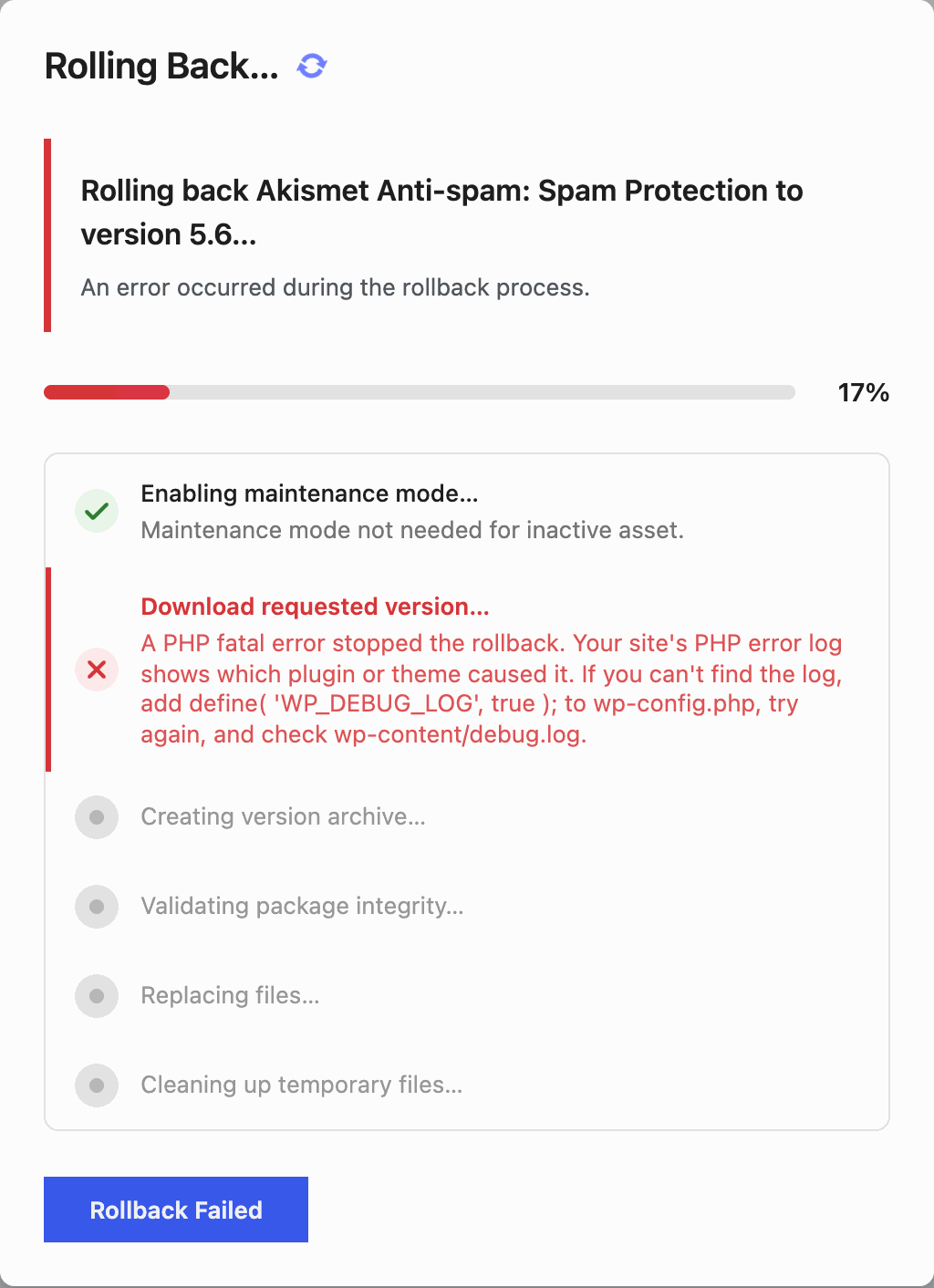
"A PHP fatal error stopped the rollback"
Cause: A PHP fatal error stopped one of the rollback steps. It usually comes from the plugin or theme being rolled back, or from running out of memory. Solution: If the message includes a file path, the folder after wp-content/plugins/ or wp-content/themes/ names the plugin or theme that caused it. If it doesn't, check your site's PHP error log, or add define( 'WP_DEBUG_LOG', true ); to wp-config.php, try again, and check wp-content/debug.log. Then check the installed version on the Plugins or Themes screen, since the files may already have been replaced.
"Failed to fetch rollback steps."
Cause: WP Rollback couldn't reach its part of the WordPress REST API (/wp-json/). A security plugin, firewall (WAF) or your host blocked the request. A blocked request can also show as "The response is not a valid JSON response." Solution: Allow /wp-json/ requests from logged-in admins in your security plugin or firewall, or ask your host. Then click Try Again.
"Sorry, you are not allowed to do that."
Cause: Your user account can't update plugins (for a plugin rollback) or themes (for a theme rollback). On multisite, only Super Admins can. Solution: Sign in as an administrator who can update plugins and themes, then try again.
"ZIP functionality is not available for package validation."
Cause: The PHP zip extension (ZipArchive) isn't installed. WP Rollback Pro uses it to check every package before installing it. The full message starts with "ZIP validation failed:". Solution: Ask your host to enable the PHP zip extension (see System Requirements).
"File modifications are not allowed on this installation."
Cause: Your site or host blocks changes to plugin and theme files, for example with DISALLOW_FILE_MODS in wp-config.php. A rollback has to replace those files. The full message starts with "WordPress Core validation failed:". Solution: Remove the setting, or ask your host to allow file changes. Then try again.
"Integrity check failed. Expected … but got …"
Cause: The file WP Rollback Pro downloaded from Plugin Vault doesn't match the checksum the Vault expects. The download was corrupted or cut short. Solution: Try the rollback again. If it keeps failing, contact support.
"Failed to download version …"
Cause: WP Rollback Pro couldn't download that version from Plugin Vault or WordPress.org. The text after the colon is the reason WordPress reported. Solution: Try again. If it keeps failing, check that your server can make outbound connections (see Download Failures), or choose a different version.
"Package does not appear to contain valid … files."
Cause: The ZIP for that version doesn't contain any plugin or theme code, so WP Rollback Pro stopped before replacing anything. The full message starts with "Package structure validation failed:". Solution: Choose a different version. If it keeps happening, contact support.
"Invalid version key: …"
Cause: Plugins with date-style version numbers, like Theme Check, couldn't be rolled back before WP Rollback 3.2.0 and WP Rollback Pro 2.0.0. Solution: Update WP Rollback to the latest version.
Prevention and Best Practices
Regular Maintenance
- Regular Maintenance: Maintain regular site maintenance
- Update Monitoring: Monitor plugin/theme updates
- Performance Monitoring: Regular performance checks
- Security Scanning: Regular security scans
Environment Preparation
- Staging Environment: Always test rollbacks on staging
- Resource Allocation: Ensure adequate server resources
- Safety Strategy: Implement comprehensive safety strategy
- Documentation: Document rollback procedures
Monitoring and Alerting
- Error Monitoring: Set up error monitoring and alerts
- Performance Alerts: Configure performance alerts
- Uptime Monitoring: Monitor site uptime
- Log Analysis: Regular log analysis and review
When to Contact Support
Free Plugin Support
- WordPress.org Forums: Post in plugin support forums
- Bug Reports: Report bugs through support channels
- Documentation: Check documentation for solutions
- Community Support: Engage with community for help
Pro Plugin Support
- Support Form: wprollback.com/support (also linked from Support in the WP Rollback Pro sidebar)
- Email: support@wprollback.com
Information to Provide
When contacting support, provide:
- WordPress Version: Current WordPress version
- PHP Version: Current PHP version
- Plugin Version: WP Rollback version
- Error Messages: Complete error messages, including the text from the Rollback Failed window
- Debug Logs: Relevant debug log entries
- Steps to Reproduce: Detailed steps to reproduce the issue
Next Steps
- Review FAQ for frequently asked questions
- Explore Developer Guide for custom solutions