



Update and Release Dates
WP Rollback Pro shows two dates next to each plugin's and theme's version number in wp-admin:
- Updated: when the installed version landed on this site.
- Released: when that version was released on WordPress.org.
When something breaks, the first question is usually "what changed?" The Plugins screen tells you which version is installed, but not when it arrived. With the dates beside each version you can see what was updated last night, and how new that release is, without leaving the screen. That makes it easier to pick the plugin to roll back and the version to roll back to.
The idea came from a WP Rollback Pro customer's feature request.
On the Plugins screen
Go to Plugins → Installed Plugins. The dates sit in each plugin's description column, right after its version number. Here WooCommerce was updated on Oct 9, two days after version 11.2.0 came out, and Brew Subscriptions Pro, a premium plugin, shows only its update date:
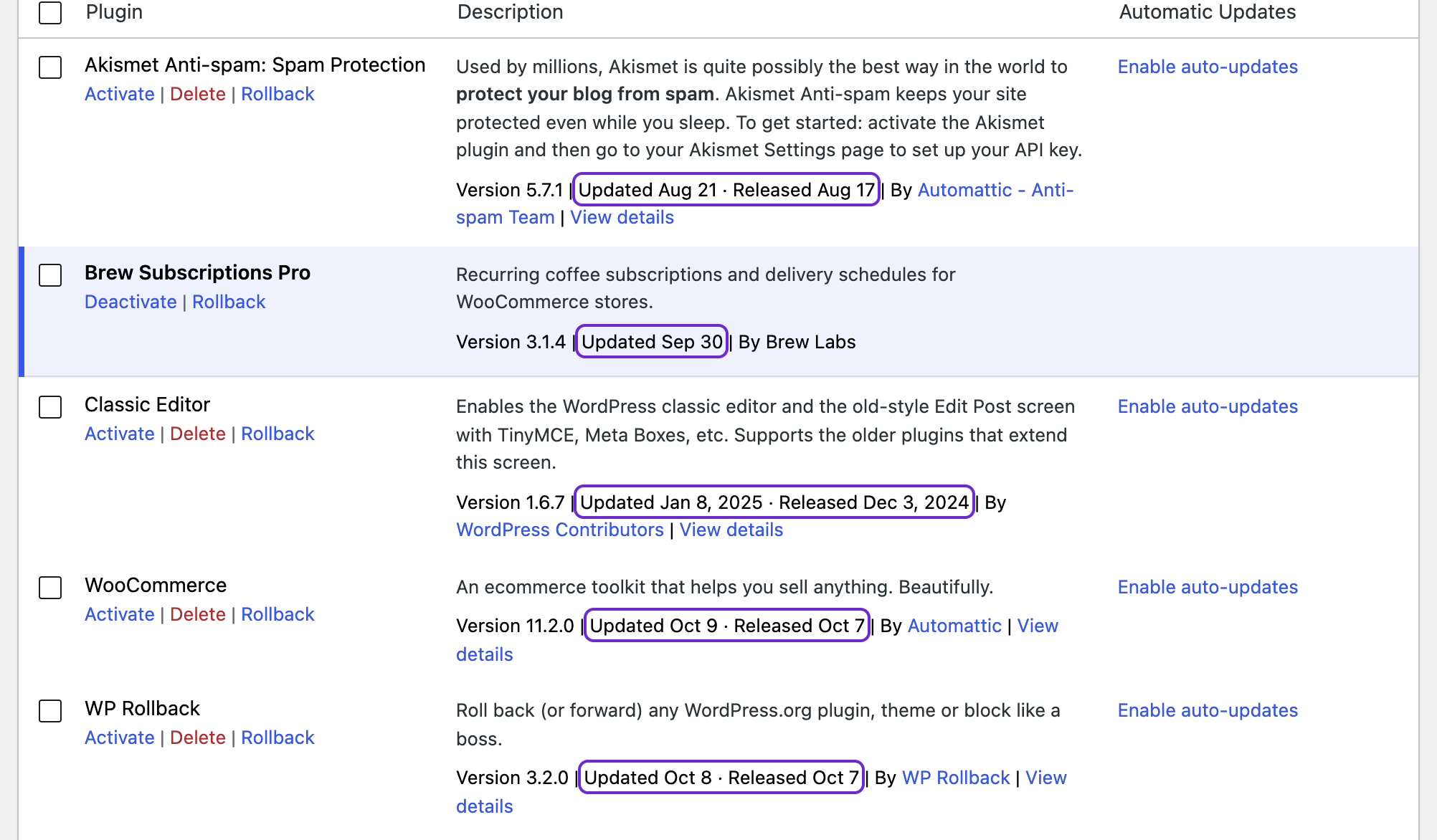
Hover over a date to see it in full, in your site's date format. For example, hovering over WooCommerce's dates above shows "Version 11.2.0 has been on this site since October 9, 2026." and "Version 11.2.0 was released on WordPress.org on October 7, 2026."
The dates are short so the line stays short. They show the month and day (Oct 9), and add the year only when it isn't the current year (Dec 3, 2024).
On the Themes screen
Go to Appearance → Themes and click a theme, or its Theme Details button. The dates are on their own line under the theme's name and version:
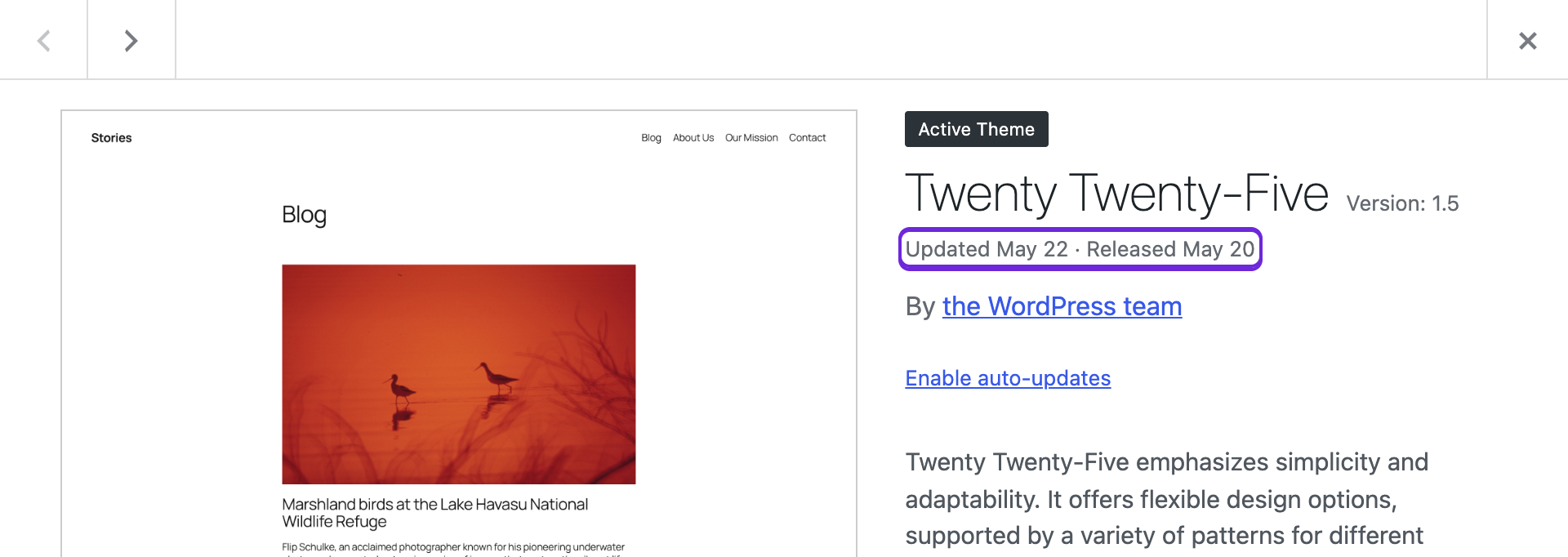
On a multisite network, the Network Admin → Themes table shows the dates after each theme's version number, the same way the Plugins screen does. A subsite's own Themes screen doesn't show them, just like it doesn't show the Rollback button.
Where the dates come from
Updated
WP Rollback Pro records the date whenever a plugin or theme is installed, updated or rolled back, whether that happens in wp-admin, through automatic updates or with WP-CLI.
For a plugin or theme that hasn't changed since you installed WP Rollback Pro 2.1, there's no recorded date yet. Pro uses the date its files were last modified instead (the main plugin file, or a theme's style.css). That's usually when the version was installed. After the next update, Pro shows the recorded date.
Released
The release date is the day the version was published on WordPress.org: the date its tag was created in the WordPress.org plugin or theme repository.
- Premium plugins and themes show only the update date. WordPress.org doesn't have their releases, so there's no release date to show.
- A version WordPress.org doesn't have, such as a development copy, shows no release date either.
Speed
The Plugins and Themes screens never wait on WordPress.org. Update dates are stored on your site and show right away. Release dates fill in a moment after the page loads, a few plugins at a time.
Each release date is saved once it's found, so you won't see the wait again for that version. If WordPress.org is slow or unreachable, the release dates are left out and Pro tries again later.
Turning the dates off
The dates are on by default. To turn them off, go to Tools → WP Rollback Pro → Settings → General (on multisite, Network Admin → Settings → WP Rollback Pro). There's a separate toggle for the Plugins screen and the Themes screen, and changes save right away.
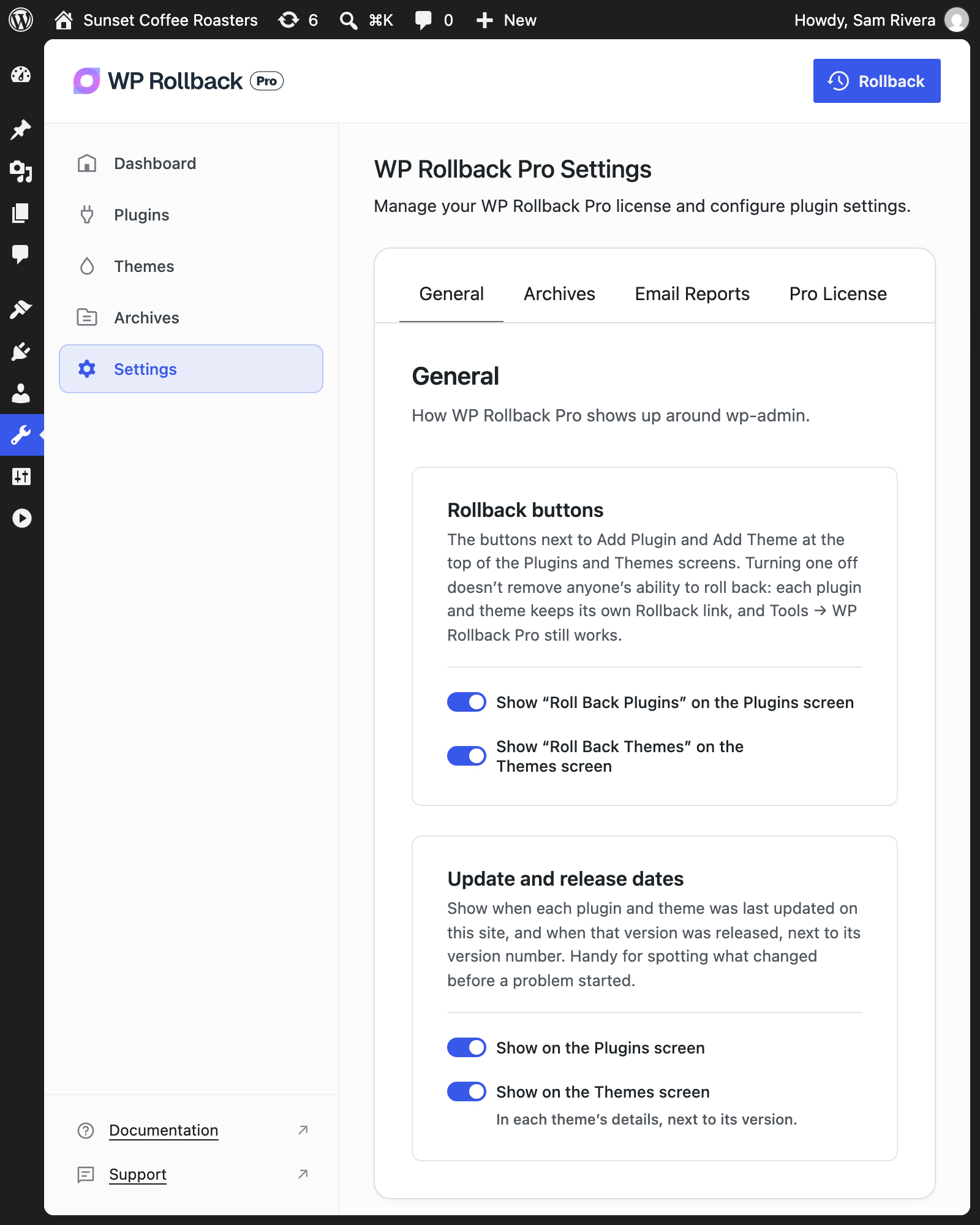
Pro keeps recording update dates while they're hidden, so they're accurate if you turn them back on.
After a premium plugin or theme updates, Pro also says which version was backed up before the update. On the Plugins screen and the network Themes table it's part of the same spot, like Updated Nov 5 · 2.8.1 backed up, and it stays when the dates are off (Version 2.9.0 | 2.8.1 backed up). In a theme's details it's its own line: "Version 1.4.0 backed up before the update on Nov 5". It has its own toggle, Show backed-up versions, under Settings → General.
Your data
- Update dates are saved in the
wpr_plugin_updated_atoption, and release dates in thewpr_release_datesoption. On multisite, both are saved once for the whole network. - To find release dates, Pro asks WordPress.org's plugin and theme repositories about the installed versions. It sends the plugin or theme slug and version, and nothing about your site's content or users.
- Deleting WP Rollback Pro removes both options.
Troubleshooting
A plugin shows "Updated" but no "Released"
That's expected for premium plugins and themes, and for any version WordPress.org doesn't have. If it's a WordPress.org plugin, WordPress.org may have been slow to answer. Reload the screen in a few minutes.
The update date looks too early or too late
Before its first recorded update, a plugin or theme shows the date its files were last modified. A host migration, a restore from backup or a deployment that copies files can change that date. The next update, install or rollback records the real date.
I don't see any dates
Check that the toggles under Settings → General are on, and that WP Rollback Pro is active. On multisite, look on the network's Plugins and Themes screens, not a subsite's.